ecamm network

    shopping cart
products support

v2.3.8 for Mac OS X

click to download free demo
2.4 MB

click to buy now


instant order fulfillment

free upgrades for life


save with:

Video Chat
Bundle


related apps:


PhoneView

your iPhone companion


iGlasses

adjust your webcam's picture


iUSBCam

use USB webcams with iChat


view all mac software

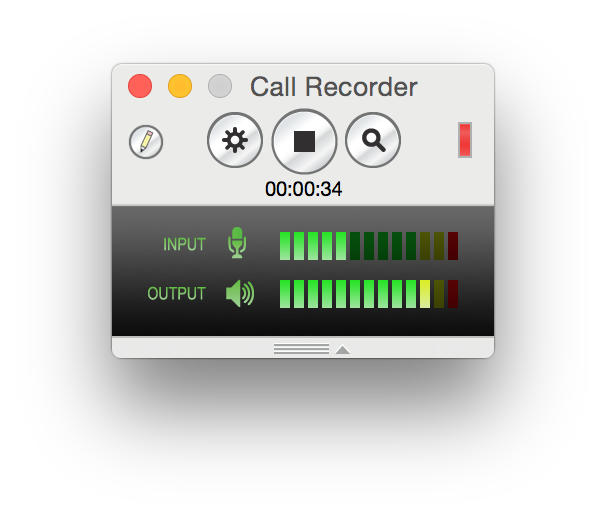
Call Recorder

record your Mac Skype calls


Call Recorder provides the following settings panel which is accessible from the Preferences window:


QuickTime Options:

The following options control the quality of the movie and affect file size.

  • Audio Encoding: Select your audio compression method. AAC Compression is recommended for optimal quality and file size. For slower computers, it may be necessary to use 2:1 Compression. Uncompressed audio is available for users who do not want to compress the recording, however this will result in very large files.

  • Audio Quality: For AAC or 2:1 compression, select your audio compression level. The following table shows the meaning of Low, Medium, and High audio quality:
    Quality Option
     HighMediumLow
    Encoding   AAC128 kbps64 kbps32 kbps
    2:144.1 Khz22.05 Khz11.025 Khz

  • Video Encoding: Choose your video compression method. Available options are H.264, MPEG-4, or JPEG compression. H.264 and MPEG-4 will provide very low data rates. H.264 playback requires the latest version of QuickTime and may not be playable by users with older QuickTime versions. JPEG is the most compatible format.

  • Video Image Size: Choose image pixel dimensions for the recorded video. The smaller sizes are recommended for slower computers which might not be able to sustain real-time encoding of 320x240 sized video.

  • Video Frame Rate: Choose a frame rate for the video recording. This settings provides a maximum value for the movie frame rate. "Maximum" will record all frames from the call.

Recording Options:
  • Record Video: Select how the video is recorded. Options include:
    • None (Audio Only): No video is recorded.
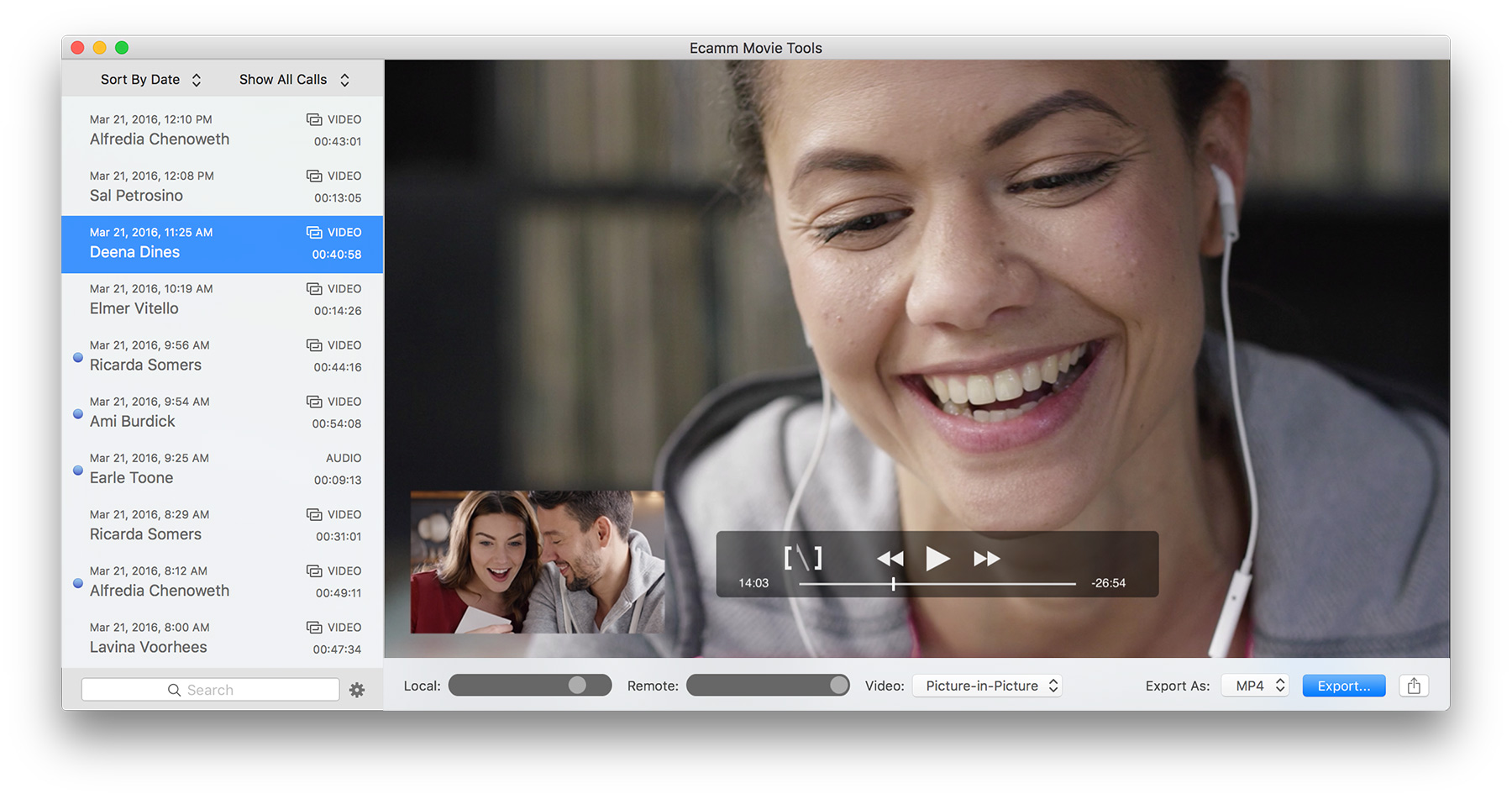
    • Picture-in-Picture: Record video from both sides of the call in picture-in-picture format. The recorded video will look exactly as you see it during the call, with your video inset within the remote video.
    • Side by Side: Record video from both sides of the call, with each side taking up half the picture.
    • Local Only: Only the local side (video from your camera) will recorded.
    • Remote Only: Only the remote side (video from the other participant) will recorded.
    • Two Track: Records Local and Remote onto two video tracks within the QuickTime movie. The tracks can then be split into separate video files using QuickTime Player Pro or the included Split Movie Tracks utility.

  • Show Recording Indicator On Video: This option will show a flashing red indicator in the top-left corner of your outgoing video. This is to provide a visual reminder to the call participants that the call is being recorded.

  • Show Recording Controls At Launch: If this option is selected, the Call Recorder window will be opened when Skype is launched.

  • Keep Recording Control in Front During a Call: This will keep the Call Recorder recording controls in the foreground, even if you were to switch to another application.

  • Record Calls Automatically: Start recording calls automatically.

  • Discard Calls Shorter Than N Seconds: This option will automatically delete any calls shorter than the specified length.

  • Record Voicemail Playback Automatically: Selecting this option will record outgoing voicemail message, as well as record your incoming voicemail as it is played back in Skype.

Save Recordings To: You can select a location for your Saved Calls folder. By default, this is located within the "Movies" folder in your home directory. You can select a different location from this menu, or set a custom location of your choosing.

        call recorder faq >>


Mac, Leopard, QuickTime and Mac OS X are trademarks of Apple Inc.
Skype, SkypeIn and SkypeOut are trademarks of Skype Limited.


introduction


system requirements


instructions


settings


faq


known issues


contact support


modification history


also from ecamm:


about us  |   faq  |   contact us  |   download  |   purchase  |   news feed  |   freeware  |   blog  |   terms of use / privacy  |  


ecamm network copyright 2010, all rights reserved